Is Upgrading to Windows 11 Safe?

 Each one of us finds upgrading to the latest version of our OS, very exciting, and upgrading to Windows 11 from Windows 10 has a different kind of love and fan base because it’s a powerhouse of productivity, security, and performance. If you have still not upgraded to Windows 11 below are the reasons why it’s worth considering:
- Modern Interface – Windows 11 introduced a sleek centered Start menu, rounded corners, and a streamlined design that enhances the user experience.
- Better Multitasking with Snap Layouts – Organizing multiple windows has never been easier with customizable snap layouts that boost productivity.
- Enhanced Gaming Performance – Features like Auto HDR and Direct Storage enhance gaming visuals and loading speeds, making it a must-have for gamers.
- Improved Security – With TPM 2.0 and Secure Boot requirements, Windows 11 provides stronger protection against cyber threats.
- Seamless Microsoft Teams Integration – Connecting with colleagues and friends is effortless with the built-in Microsoft Teams chat feature.
Can Upgrading from Windows 10 to Windows 11 Cause Data Loss?
While Microsoft designs Windows upgrades to be seamless, data loss can still happen in specific scenarios. Here’s how you might lose files during the upgrade:
- Selecting the Wrong Option: Windows 11 offers different options, throughout the installation process. If you by mistake choose “Remove everything” instead of “Keep my files”, your files will be lost permanently.
- Failure to Upgrade: Upgrade fails due to power outages, insufficient storage, or corrupt installation files which lead to incomplete installations, leaving your data vulnerable.
- Incompatible System: If your system Pc doesn’t meet the requirements of Windows 11, the upgrade will be rolled back to Windows 10, which may also get some of your data deleted or reset settings.
- 4. Corrupted User Profile: Some users report that their files seem to vanish after upgrading because Windows creates a temporary user profile. This can make it seem like your files are lost.
So this guide is not about threatening you but spreading awareness of possible problems, but also giving their best solutions to counter the problem. So let’s now explore the unbeatable solutions to the problems.
How to Safeguard Your Data Before Upgrading
The good news is that you can prevent data loss with a few proactive measures. Here’s how:
- Back up Your Important Files: Before upgrading, always create a backup of essential files. For backup, you can use external hard drives, cloud storage, or even use Windows backup tool.
- Check System Compatibility: Make sure your system meets the requirements of Windows 11 to avoid any upgrade failures. You can use Microsoft’s PC Health Check tool to verify compatibility.
- Free Up Disk Space: Windows 11 requires enough storage to install correctly. Delete unnecessary files and applications to create sufficient space.
- Use Windows Update for a Smooth Installation: Downloading Windows 11 through Windows Update ensures you receive a legitimate, stable upgrade without installation errors.
But what if, despite taking precautions, you still lose data? Let’s explore recovery options.
How to Recover Lost Data After Upgrading to Windows 11
If you’ve lost important files during the upgrade, don’t panic—there are ways to recover them.
- Check the Windows.old Folder
When Windows are upgrading they temporarily store old system files in Windows.old folder. To get the old files just open File Explorer, go to C:\Windows.old, and look for your missing files under Users > Your Username your files aren’t there, move on to the next recovery method.
- Restore from Backup: If you backed up your files before upgrading, restore them by copying the files from an external HDD/SSD or downloading from one drive or Google Drive. You can even restore from Windows Backup if your File History is enabled.
- Use Windows Data Recovery Software
If you don’t have a backup, you can still recover lost files using Windows data recovery software. One of the best tools for this is Stellar Data Recovery, which is now available in V.12 which specializes in retrieving lost, deleted, or formatted files even after a system upgrade.
Steps to Recover Data Using Stellar Data Recovery
- Download and Install Stellar Data Recovery on your Windows 11 PC.
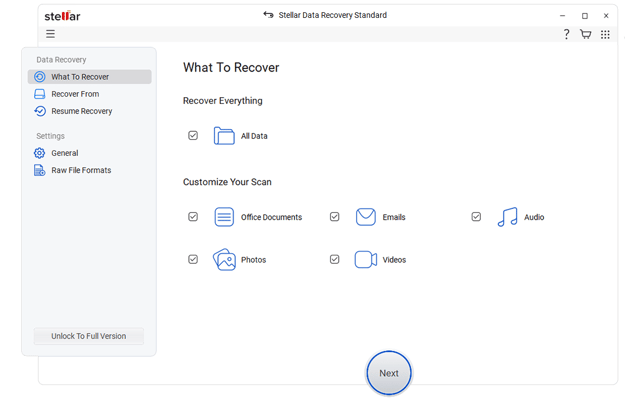
- Launch the software and select the type of data you want to recover (documents, photos, videos, etc.).
- Choose the drive where your files were stored before the upgrade (usually C: drive).
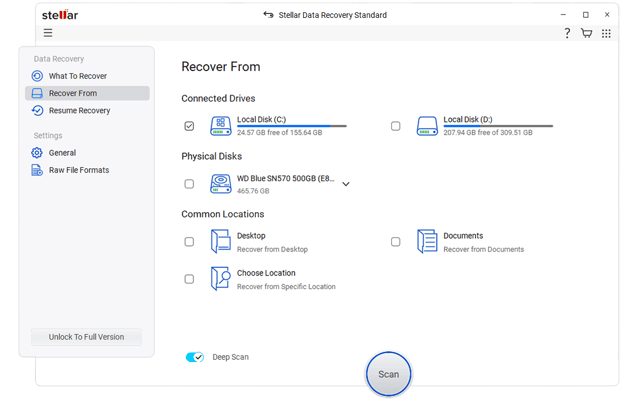
- Click on Scan and let the software search for lost files.
- Once scanning is complete, preview the recoverable files.
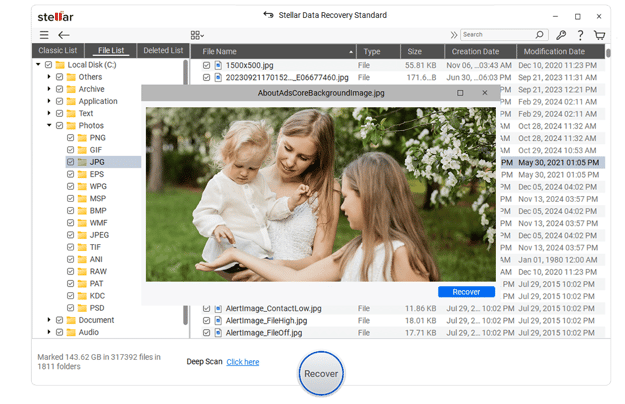 6. Select the files you need and click Recover to restore them.
Final Thoughts: Upgrade with Confidence!
Windows upgrades always give a kick of excitement and newness, bringing new features, improved security, and a modern interface, making it a worthy upgrade from Windows 10. However, if the precious files and data are lost it sucks and is too stressful, but now you know that recovery is possible.
Whether you retrieve data using backups, explore hidden files, or rely on Stellar Data Recovery Software, there’s a good chance you can restore what’s lost. Going forward, always back up your files and choose the right installation options to avoid unexpected data loss.